You’re building an app with an AI coding tool. You ask your AI to change a button from grey to neon blue, wait for it to finish, refresh localhost:3000 in your browser, and… nothing changes. It’s still showing the old grey button from an hour ago.
When you ask your AI what’s going on, a message pops up in the chat:
Aha—looks like a zombie process from an earlier dev server is still hanging around in the background and serving the old version of your app. Let me clean it up...
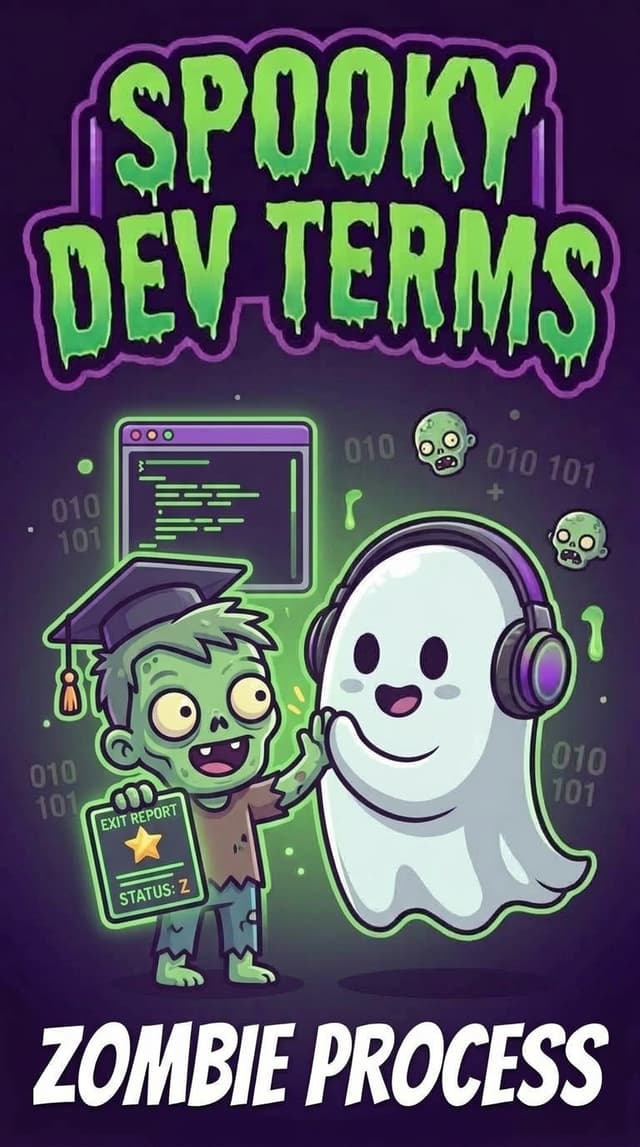
If you aren’t a software engineer, zombie process sounds like your laptop just caught a virus from Night of the Living Dead. Don’t worry undead programs are not secretly taking over your computer.
What is a Zombie Process, Really?
In my post about daemons, we discussed how they are background helpers and how every program running on your laptop gets a Process ID (PID), like a coat-check ticket.
When programs work together, they form a family tree:
- The Parent Process: The main app or script you launched (for example, your AI coding tool or a test runner).
- The Child Process: A smaller task the parent spun up to do an errand (like compiling a file, running a test suite, or launching a headless browser).
When the child process finishes its errand, it shuts down. It frees up its memory (RAM), stops using your CPU, and essentially says: "I'm done, here is my final report card!"
So why is it called a zombie?
The operating system keeps the child's coat-check ticket (its PID and exit status) in its registry until the parent process picks it up. So, if the parent process gets distracted, freezes, or forgets to read that final report card, the finished child is stuck in limbo. It isn't running, it isn't using resources, but its name is still on the board. It's technically dead, yet still lingering... an undead zombie process.
The Plot Twist: You Cannot kill -9 a Zombie!
When you first see a zombie process, your immediate instinct after reading about kill -9 is to pull out your ultimate emergency weapon.
You type kill -9 7214... and nothing happens. The zombie is still there.
Why? Because you cannot kill what is already dead.
As we covered in our guide on kill -9, signals tell a running program to shut down. But a zombie process is already terminated. It has no brain to receive the signal and no code running to execute a shutdown.
How to Actually Banish a Zombie
If kill -9 doesn't work, how do you get rid of a lingering zombie? You have two options:
1. Nudge the Parent
Usually, telling the parent process to check in will prompt it to read the child's report card (engineers call this reaping). Once the parent reads the exit status, the zombie instantly vanishes.
2. Take Out the Parent Process
If the parent program is hopelessly frozen and ignoring its zombie children, you don't target the zombie... you target the parent.
When a parent process closes, its zombie children become "orphans." Your operating system's grandmaster process (called init or systemd or launchd on a Mac) immediately adopts all orphaned processes and instantly reaps them out of existence.
Where Builders Encounter Zombies in AI Coding Tools
When building apps with AI agents, you will occasionally cross paths with zombie processes in a few common scenarios:
- Aborted Test Runs: When you cancel an automated test midway through, the parent runner might exit before reading the status of one of its helper scripts.
- Crash-Looping Background Subagents: If an AI coding agent spins up helper subprocesses and crashes unexpectedly, those background errands might sit as
<defunct>entries. - Ghost Port Blockers: Occasionally, a zombie's parent process is still holding onto a port or resource, making your terminal feel haunted until the parent is stopped.
How to Handle Them in Google Antigravity
In Google Antigravity, you don't have to worry about digging through process tables:
- Use
/tasks: Run the interactive Task Manager in the Antigravity CLI to see all active background tasks. If a parent runner is stuck, you can terminate it cleanly with a single keypress. - Use
/agents: View and manage child subagents so you never leave orphaned helper tasks behind. - Just ask your AI: You can tell your assistant: "Looks like there is a defunct process lingering from the last test run, can you find the parent task and clean it up?"
The Builder’s Spooky-to-Human Cheat Sheet
| When your AI says… | What it actually means… |
|---|---|
| Zombie Process (State: Z) | "A finished background task whose parent forgot to pick up its exit report." |
<defunct> |
"The terminal's label for a process that is already dead but waiting in limbo." |
| Reaping | "The parent process finally reading the finished task's status so it can vanish." |
| Orphan Process | "A child task whose parent closed first, now adopted by the main operating system." |
Builder Takeaway
- Don't panic: Zombie processes use 0% CPU and zero memory. They aren't slowing down your computer.
- Don't
kill -9the zombie: Target the parent process instead. - Keep your workspace tidy: Stop stuck parent tasks so your background queue stays clean and fast.
Next time you see a zombie in your terminal, don't scream. Just smile knowing it's just a faithful helper waiting for a high-five before it fades into the night!