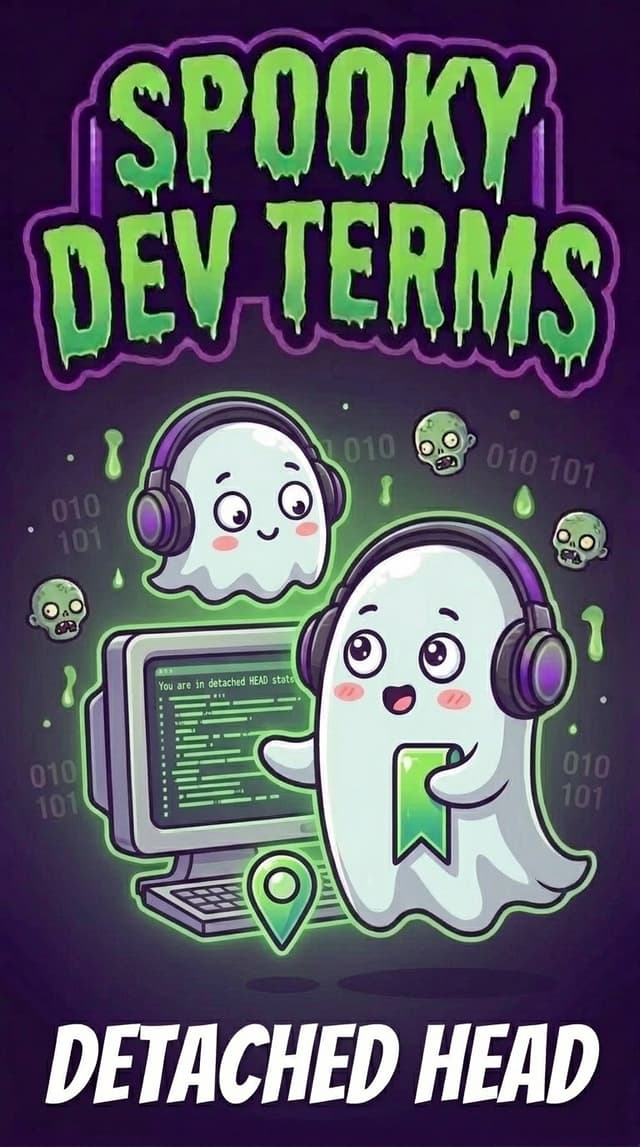
What the Heck is a “Detached HEAD”?
You’re building an app with an AI coding tool. A new change just broke your layout, so you ask your AI: “Can we go back to the version from an hour ago when it was working?”
Suddenly, a terrifying warning pops up in the terminal:
You are in 'detached HEAD' state.
If you aren’t a software engineer, detached HEAD sounds like a medieval guillotine accident. Did you just decapitate your project and delete all your work?
Not at all. Nothing is broken, and your files are completely safe.
What is a Detached HEAD, Really?
Think of how Version History works in a Google Doc:
- Normal Mode (The Live Doc): Most of the time, you are typing at the very latest version of your document. Every new sentence you write is automatically saved to the live file.
- Viewing an Older Version: Sometimes you click File → Version History and click on “Yesterday at 3:00 PM” just to see what the page used to look like.
In Git (the save-history tool your AI coding assistant uses behind the scenes), HEAD is just a weird nickname for “where you are looking right now.”
Normally, HEAD stays glued to the live front edge of your project (called main).
When you ask your AI coding assistant to jump back and open an older save from yesterday, your view (HEAD) steps away from the live edge so you can look at the past. That’s all detached HEAD means: you are looking at an old snapshot in Version History instead of your live project.
Why Does It Sound So Scary? (The One Catch)
Git prints a giant warning in detached HEAD mode for one simple reason: you are in “Look, Don’t Touch” mode.
- Looking around is 100% safe: You can run your app, click buttons, and test how yesterday’s version worked without hurting anything.
- The trap—building new things in the past: While you are looking at yesterday’s snapshot, you aren’t connected to your live project timeline. If you forget you’re in the past and ask your AI to spend an hour building a brand-new feature right there, those new saves aren't attached to your live project. The moment you jump back to the present, those new changes get left behind like an unsaved draft.
Where Builders Run Into It
You’ll almost always see detached HEAD when you ask your AI coding assistant to time-travel:
- Checking When a Bug Started: “Open yesterday’s version so we can see if the login button worked back then.”
- Recovering an Old Design: “Let’s look at the save from two hours ago before we changed the colors.”
Why Builders Should Care (What to Tell Your AI)
You never need to memorize Git commands to fix a detached HEAD. You just need to know which of two plain-English sentences to tell your AI coding assistant:
- Scenario A: You were just peeking at an old version and want to go back to normal. What to tell your AI coding assistant: “We’re done looking at this old version—take us back to the live
mainbranch.” - Scenario B: You started making edits on that old version and want to keep them! What to tell your AI coding assistant: “We’re in a detached HEAD state and I want to keep the changes we just made—save them into a new branch so nothing gets lost.”
How to Skip the Drama in Google Antigravity
In Google Antigravity, you don’t even have to step into a detached HEAD to peek at old versions or undo a mistake:
- Want to undo a bad AI edit? Type
/rewind(or/undo) in the Antigravity CLI to roll your chat and code back to an earlier checkpoint—while staying safely on your live project. - Want to peek at older saves without time-traveling? Type
/diffand pressTabto flip through your past turns and save history visually, or click Review Changes in the Antigravity IDE.
The Builder’s Spooky-to-Human Cheat Sheet
| When your AI says… | What it actually means… |
|---|---|
HEAD |
“The snapshot of your project that is open on your screen right now.” |
main (Branch) |
“The live, up-to-date timeline of your project.” |
detached HEAD |
“You’ve rewound to an older snapshot in Version History to look around.” |
“Checkout main” |
“Exit Version History and go back to your live project.” |
“Create a new branch from HEAD” |
“Turn this old snapshot (and the edits you just made) into a new live timeline so your work is saved.” |
Builder Takeaway
- See
detached HEAD? Don’t panic—your code isn’t deleted. You’re just viewing an older save snapshot. - Before you start building new features, always ask your AI to either return to
mainor save a new branch so your new work doesn't get left behind in the past.
Next time your terminal warns you about a detached HEAD, you don’t have to worry about the Headless Horseman. You’re just scrolling through your project’s Version History and you’re one prompt away from jumping right back to the present.